
How to Create Amazon PPC Campaigns for Your Product (Step-by-Step Guide):
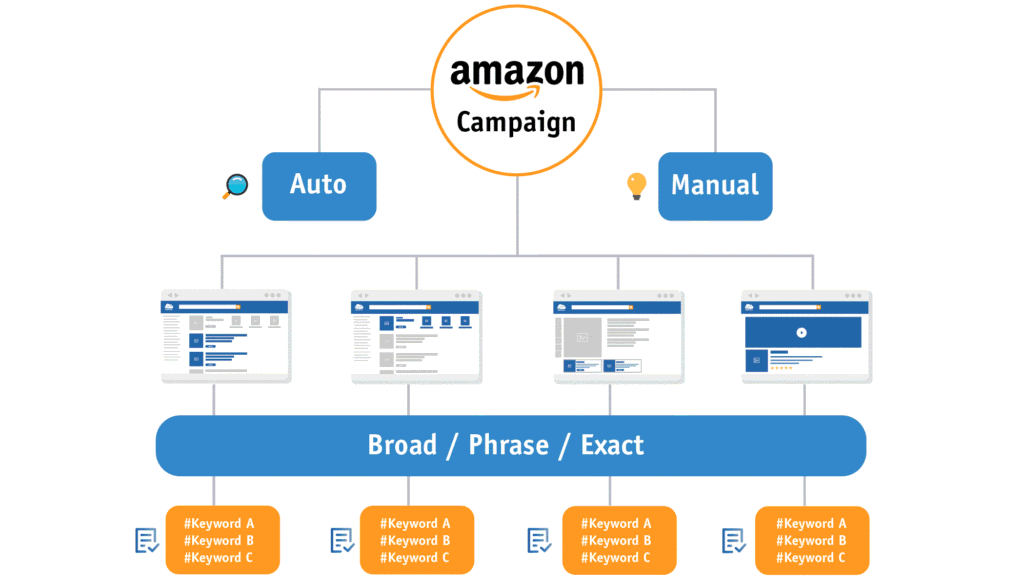
If you want to succeed on Amazon, running ads is no longer optional—it’s necessary. Whether you’re launching a new product or scaling an existing one, Amazon PPC (Pay-Per-Click) helps you get visibility, traffic, and most importantly, sales.
In this guide, you’ll learn how to create and manage the three main types of Amazon ads:
Sponsored Products
Sponsored Brands
Sponsored Display
Let’s break it down step by step.
What is Amazon PPC and Why It Matters?
Amazon PPC is an advertising system where you pay only when someone clicks on your ad. It allows your product to appear on top of search results or on competitor listings.
Example:
If you are selling a cat water fountain, your product can appear when someone searches “best cat water fountain” or even on your competitor’s product page.
This gives you:
Immediate visibility
Targeted traffic
Faster sales growth
- Sponsored Products Campaign (Best for Beginners)
Sponsored Products are the most common and effective ad type on Amazon. These ads promote individual product listings.
Where They Appear:
Search results (top, middle, bottom)
Product detail pages
How to Create Sponsored Products Campaign:
Step 1: Go to Campaign Manager
Login to Seller Central → Advertising → Campaign Manager
Step 2: Click “Create Campaign”
Choose “Sponsored Products”
Step 3: Choose Campaign Type
Automatic Targeting (Amazon finds keywords for you)
Manual Targeting (you choose keywords)
Step 4: Set Budget
Start with a daily budget (example: $5–$20 depending on your budget)
Step 5: Set Bidding Strategy
Dynamic bids (recommended for beginners)
Step 6: Add Keywords (Manual Campaign)
Example keywords for cat water fountain:
“cat water fountain stainless steel”
“pet water dispenser automatic”
Step 7: Launch Campaign
Pro Tip:
Start with Automatic Campaign for data collection, then move to Manual Campaign to scale.
- Sponsored Brands Campaign (Build Your Brand)
Sponsored Brands ads help you promote your brand, not just one product. These ads include your logo, headline, and multiple products.
Where They Appear:
Top of Amazon search results
Example:
When someone searches “cat water fountain,” your ad shows:
Brand name (e.g., Pawzar)
Custom headline: “Keep Your Cat Hydrated with Pawzar”
3 products displayed
How to Create Sponsored Brands Campaign:
Step 1: Choose Sponsored Brands
Inside Campaign Manager, select “Sponsored Brands”
Step 2: Select Products
Choose 2–3 products to feature
Step 3: Add Logo & Headline
Make it attractive and clear
Step 4: Choose Landing Page
Product listing page
OR Amazon Store (recommended)
Step 5: Add Keywords
Use high-volume and relevant keywords
Step 6: Set Budget & Bids
Best Use Case:
When you have multiple products
When you want to build brand awareness
- Sponsored Display Campaign (Retargeting Power)
Sponsored Display ads are powerful because they target audiences, not just keywords.
Where They Appear:
On competitor listings
Off Amazon (websites & apps)
Example:
A customer visits your competitor’s cat fountain but doesn’t buy. Later, they see your product ad while browsing—this is retargeting.
How to Create Sponsored Display Campaign:
Step 1: Choose Sponsored Display
Step 2: Select Targeting Type
Audiences (retargeting)
Product targeting (competitor ASINs)
Step 3: Choose Products
Step 4: Set Budget and Bids
Best Use Case:
Retarget customers who didn’t purchase
Target competitor products
Increase conversions
Campaign Strategy (Simple & Effective)
Here’s a basic strategy you can follow:
Phase 1: Launch
1 Auto Sponsored Product campaign
1 Manual Sponsored Product campaign
Phase 2: Data Collection (7–14 days)
Find winning keywords
Remove non-performing keywords
Phase 3: Scaling
Move winning keywords to exact match
Launch Sponsored Brands campaign
Add Sponsored Display for retargeting
Common Mistakes to Avoid
Running ads without proper listing optimization
Using irrelevant keywords
Setting too low budget
Not analyzing data regularly