
How to Open a Case with Amazon Support (Step-by-Step Guide + Escalation Levels):
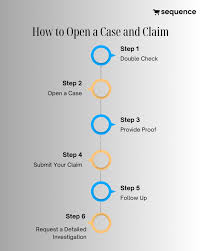
If you’re running an Amazon business, knowing how to contact Amazon support and escalate issues effectively is critical. Whether you’re dealing with listing errors, account suspensions, FBA inventory issues, or payment delays, opening a case properly can save you time and money.
In this guide, you’ll learn how to open a case with Amazon Seller Support, along with a complete breakdown of Amazon support escalation levels to resolve issues faster.
Why Contact Amazon Seller Support?
Amazon Seller Support helps sellers resolve:
Listing errors and suppressed listings
FBA shipment and inventory issues
Account health warnings or suspensions
Payment delays or disbursement issues
PPC and campaign-related problems
Understanding how to communicate with support increases your chances of getting quick and accurate resolutions.
Step-by-Step: How to Open a Case with Amazon Support
Follow these steps to contact Amazon Seller Support the right way:
Step 1: Log in to Seller Central
Go to your Amazon Seller Central account.
Step 2: Navigate to Help Section
Click on the “Help” button located in the top right corner.
Step 3: Click “Get Support”
You’ll find the option “Get Support” or “Contact Us.”
Step 4: Select Your Issue Type
Choose the category relevant to your issue:
Selling on Amazon
FBA (Fulfillment by Amazon)
Advertising / PPC
Account Health
Step 5: Choose Contact Method
Amazon offers:
Email (Case Log)
Live Chat
Phone Call
Step 6: Write a Clear Case Message
Make sure your message includes:
ASIN or SKU
Shipment ID (if applicable)
Clear explanation of the issue
Screenshots (if needed)
Pro Tip: Keep your message short, professional, and to the point.
Best Practices for Writing an Effective Amazon Case
To improve response quality:
Use bullet points
Avoid emotional language
Clearly mention what you want (refund, fix, investigation)
Attach proof (images, invoices, reports)
Example:
“We request reimbursement for missing inventory under Shipment ID XYZ. Attached are proof of delivery and discrepancy report.”
Amazon Support Escalation Levels (Very Important)
Not all issues get resolved at the first level. Understanding escalation can help you push your case forward.
- Base Level Support (Tier 1)
This is the first response you receive.
Handled by general support agents
Often scripted responses
Limited authority
Tip: If the reply is irrelevant, reopen the case.
- Captive Team / Internal Team (Tier 2)
When your issue is more technical or complex:
Case is transferred internally
Better understanding of backend systems
More accurate resolutions
- Leadership Team / Supervisor Escalation
If the issue is still unresolved:
Ask for escalation to a supervisor
More decision-making authority
Better handling of reimbursements and account issues
- Amazon Seller Performance Team
This team handles serious issues like:
Account suspensions
Policy violations
Listing restrictions
Important: Communication here must be highly professional and detailed.
- Director Level / Executive Escalation
This is the highest level of escalation.
Used for critical or unresolved issues
Contacted via email escalation or repeated follow-ups
Sometimes involves Amazon executive teams
When to use:
Account wrongly suspended
Large financial loss
Multiple failed support attempts
How to Escalate a Case Properly
Reopen the same case instead of creating new ones
Mention: “This issue is still unresolved, kindly escalate to the concerned team.”
Keep all communication in one thread
Stay professional and persistent
Common Mistakes to Avoid
Opening multiple cases for the same issue
Writing long, emotional messages
Not providing proof
Ignoring Amazon policies